
AI voice chat that works offline: talk to an AI on your iPhone, privately
· By Modelbase Team
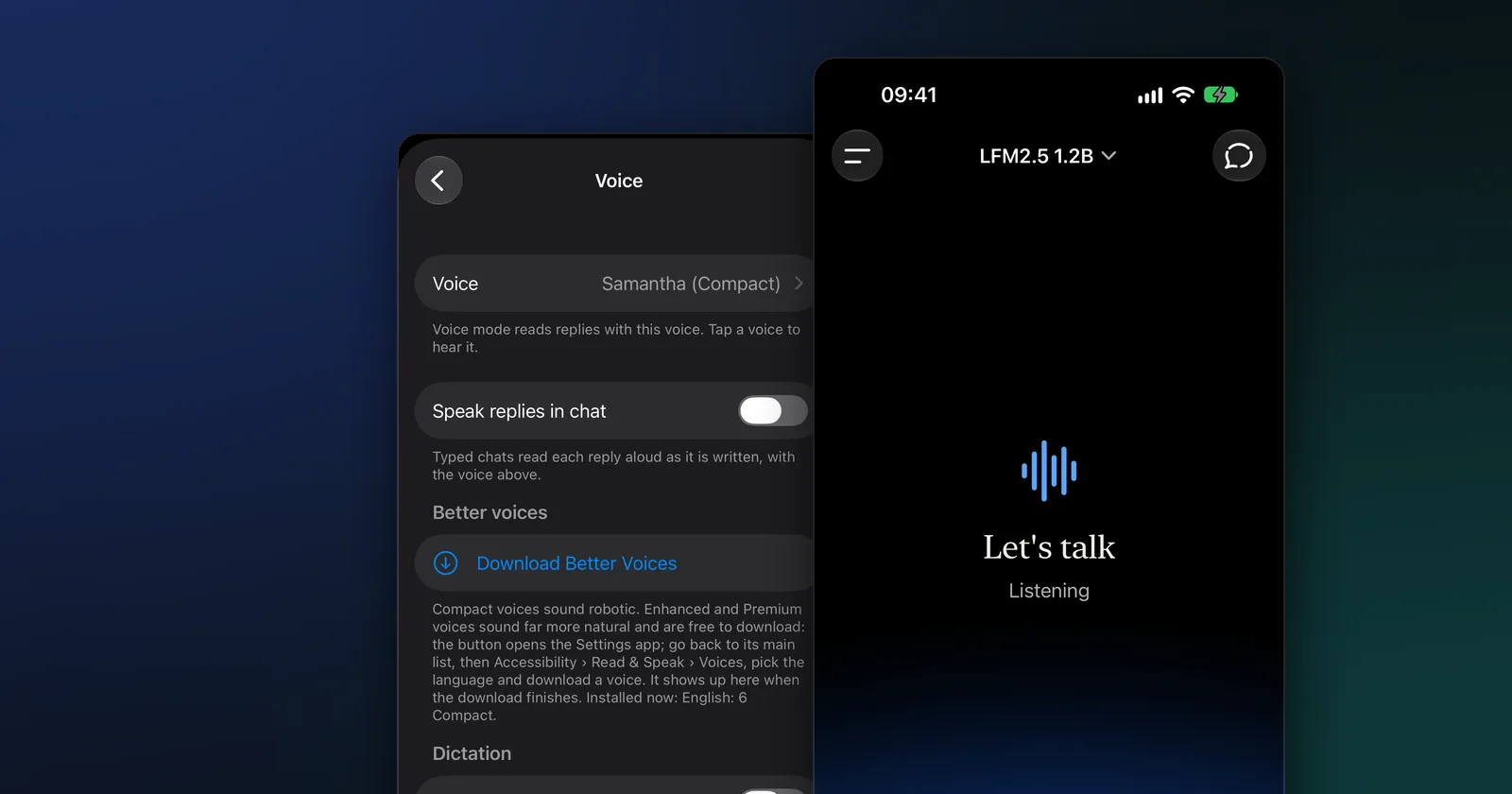
You can have a voice chat with an AI on your iPhone without sending your voice anywhere. Open an app whose model runs on the phone, start voice mode and talk: your speech is turned into text on the device, the model answers on the device, and the reply is read aloud by one of the iPhone’s own voices. In Modelbase, that’s the waveform button next to the message field. It works in airplane mode, and it’s free.
Most AI voice chat apps stream your voice to a server, where a large model listens and talks back. That makes them fluent, but it also means a recording of your voice leaves your phone with every sentence. This guide explains how an on-device voice chat works instead, how to start one, and how to make it sound good.
How on-device AI voice chat works
A voice conversation with an AI has three parts, and in Modelbase all three run on your iPhone:
| Step | What does it | Where it runs |
|---|---|---|
| 1. Hearing you | Apple’s speech recognition | On the device, for languages your iPhone supports offline |
| 2. Thinking of a reply | The language model you picked | On the device (a local model) |
| 3. Speaking the reply | The iPhone’s own voices | On the device |
Apple’s speech framework has a setting that makes a recognition request “keep its audio data on the device” (Apple). Modelbase uses it whenever your iPhone can recognize the language offline. If it can’t, voice mode doesn’t quietly fall back to a server: it tells you, and the only way to use Apple’s online recognition instead is a switch you turn on yourself (more on that below).
The model then answers in a spoken style: short, no lists or tables, and without “thinking” first, because a long silence feels broken in a conversation. Each exchange also lands in the chat as text, so you can scroll back through what was said later.
How to start a voice chat in Modelbase
- Install Modelbase (free, iPhone and iPad with iOS 18 or later, Macs with Apple silicon). It comes with a model, so voice mode works from the first launch.
- Tap the waveform button at the right of the message field. (The microphone next to it is dictation: it types what you say into the message field instead.)
- Allow the microphone and speech recognition the first time.
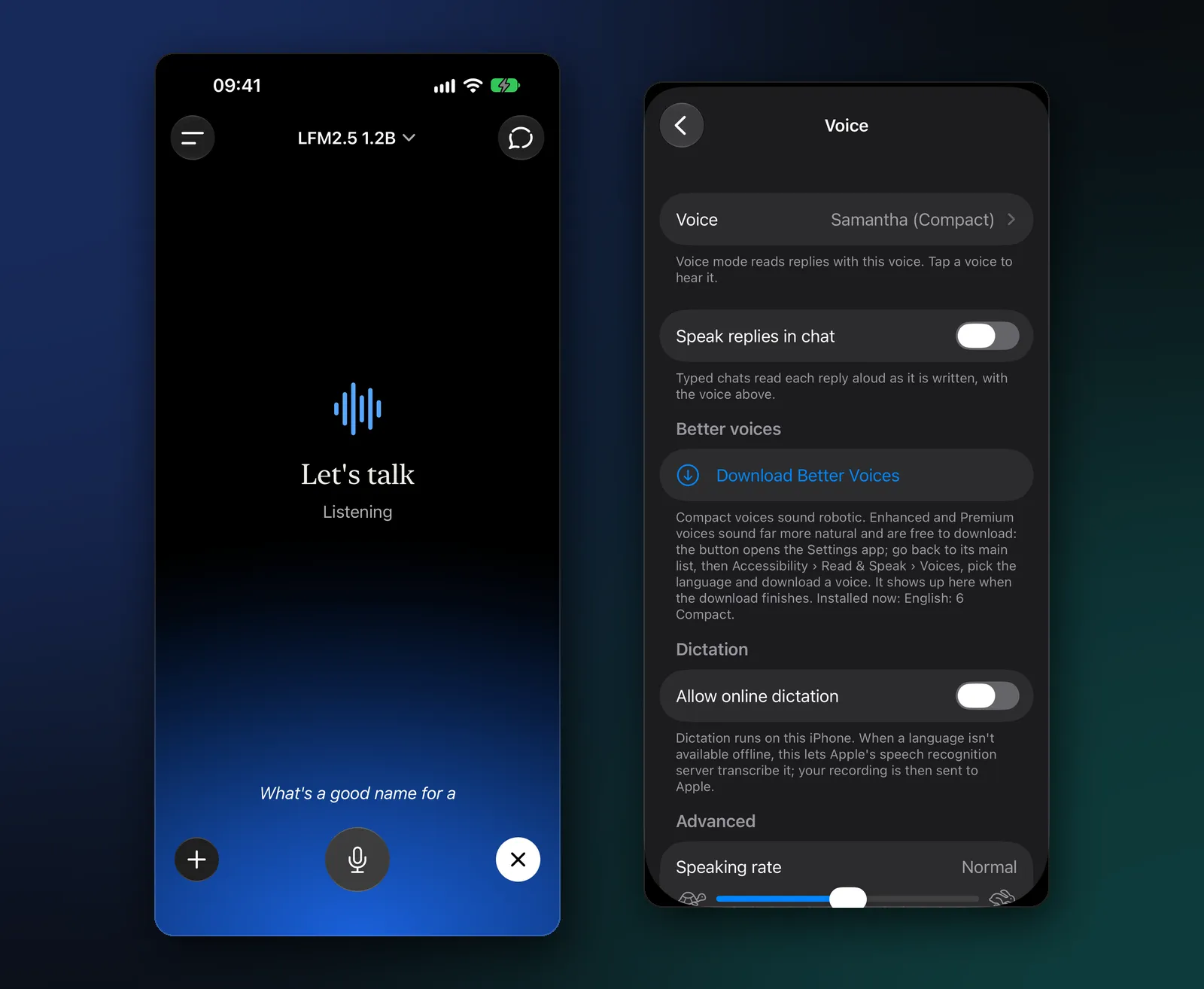
- Talk. The screen says “Listening” and shows a live caption of what it hears. When you pause, voice mode sends what you said, the screen shows “Thinking”, and the reply is spoken.
- Keep going. After the reply, it listens again. Tap the microphone to mute, and the X to end voice mode.
Interrupt it, like a real conversation
With Interrupt by speaking on (it is by default), you can talk over a reply and it stops, keeps what it had said in the chat, and listens to you. To make that possible the iPhone filters its own voice out of the microphone, which makes the voice sound a little thinner. If replies stop by themselves on the speaker, or you prefer the full sound, turn the switch off in Settings > Voice and tap the microphone to interrupt instead.
Voice mode also copes with real life: a phone call or Siri pauses it, and putting in AirPods mid-conversation just switches the audio over.
Make the AI voice sound natural
The iPhone ships with “Compact” voices, which sound robotic. Apple also offers Enhanced and Premium voices that sound far more natural, free to download. To get them:
- In Modelbase, open Settings > Voice and tap Download Better Voices. It opens the Settings app.
- Go back to the Settings app’s main list, then Accessibility > Read & Speak > Voices.
- Pick your language and download an Enhanced or Premium voice.
- Back in Modelbase, choose it under Settings > Voice > Voice. Tap a voice to hear it.
In the same screen you can set the speaking rate, how long a pause sends what you said (a longer pause gives you time to think mid-sentence), and Speak replies in chat, which reads every reply aloud in typed chats too.
Voice chat offline
Because hearing, thinking and speaking all happen on the device, voice mode works with no connection: on a flight, on a walk without signal, abroad without roaming. Two things to set up before you go:
- Download the model you want while you’re online (the included one is already on the phone).
- Check that your language works offline. If your iPhone can’t recognize your language offline, voice mode will say so; adding the language under Settings > General > Keyboard > Dictation Languages in the iPhone’s Settings app can help.
About “Allow online dictation”
In Settings > Voice, under Dictation, there is one switch that changes where your voice goes: Allow online dictation. It’s off by default. When it’s on and a language isn’t available offline, Apple’s speech recognition server transcribes it, and the app says plainly that your recording is then sent to Apple. Leave it off and your voice never leaves the device.
What to use AI voice chat for
Talking is faster than typing for some things, and a voice that answers back is handy when your hands are busy:
- Thinking out loud: talk through a decision, a plan for the weekend or how to word a hard message.
- Practice: rehearse interview answers, a presentation, or a conversation in a language you’re learning.
- Cooking and chores: ask for a substitute for an ingredient or a quick conversion without touching the screen.
- Quick explanations: “What’s the difference between baking soda and baking powder, in two sentences?”
- Private things: questions you’d rather not type into a cloud service, said in a room where nobody records you.
A model that runs on a phone is small, so it’s better at conversation, explanations and everyday advice than at obscure facts. For news, prices and anything that changes, type the question so web search can answer with sources.
Which model to use for voice
Voice replies should start quickly, so a small, fast model makes the best conversation partner. The included LFM 2.5 (1.2B, 0.66 GB) is a good default. On a newer iPhone, Qwen 3.5 (2B, 1.75 GB) or Llama 3.2 (3B, 1.82 GB) give fuller answers. Voice turns skip the thinking step where the model allows it, so a reasoning model brings no advantage in voice mode. See which model to run on your iPhone for the full picture.
On-device voice chat vs cloud voice assistants
| On-device (Modelbase) | Cloud voice chat apps | |
|---|---|---|
| Your voice | Recognized on the device (unless you allow online dictation) | Sent to the service |
| Works offline | Yes | No |
| Account | None | Depends on the service |
| Voice quality | Apple’s system voices (Enhanced and Premium are free) | Depends on the service |
| Answers | A small model: good for conversation and everyday questions | A large model: more knowledge |
| Cost | Free | Depends on the service |
Cloud voice assistants have bigger models behind them. An on-device voice chat trades some of that knowledge for privacy, no account and a conversation that keeps working when the signal drops. For the bigger picture, read on-device AI vs cloud AI, can you use ChatGPT offline? and how to run an LLM locally on iPhone, iPad and Mac.
FAQ
Is there an AI I can talk to offline on iPhone?
Yes. Modelbase’s voice mode recognizes your speech, runs the model and speaks the reply all on the iPhone, so it works in airplane mode. It’s free on the App Store.
Does AI voice chat record my voice?
In Modelbase, speech recognition runs on the device for languages your iPhone supports offline, and the audio stays on it. Only if you turn on “Allow online dictation” can a language that isn’t available offline be sent to Apple’s server for transcription.
Can I interrupt the AI while it’s talking?
Yes. With Interrupt by speaking on (the default), just start talking and the reply stops. With it off, tap the microphone to interrupt.
How do I make the AI voice sound less robotic?
Download an Enhanced or Premium voice in the iPhone’s Settings app (Accessibility > Read & Speak > Voices), then pick it in Modelbase under Settings > Voice. They’re free.
Is voice mode free?
Yes. Modelbase and its on-device models are free, and voice mode has no time limit.
What’s the difference between voice mode and dictation?
Dictation (the microphone button) types what you say into the message field so you can edit it and send it yourself. Voice mode (the waveform button) is a hands-free conversation: it listens, sends, answers out loud and listens again.
Try it on your iPhone, iPad or Mac
Modelbase is free on the App Store.