
How to chat with a PDF on your iPhone, without uploading it
· By Modelbase Team
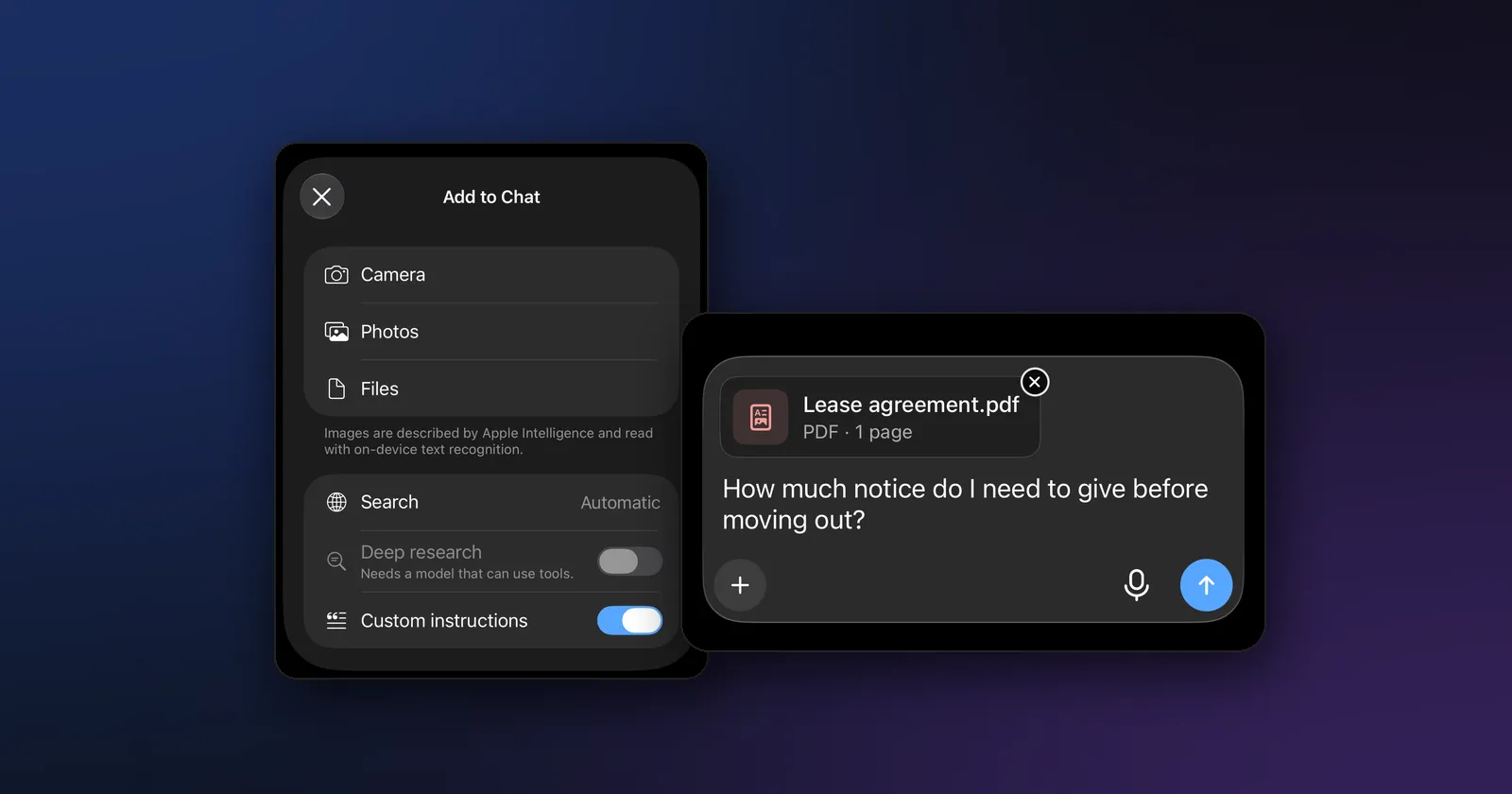
To chat with a PDF on your iPhone without uploading it, attach the file to an AI app that reads it on the device, then ask your question. In Modelbase, tap +, choose Files, pick the PDF and type something like “Summarize this” or “What does it say about the deposit?”. The app reads the PDF on your iPhone, finds the passages that answer you, and the model replies with the page it used. Nothing is sent to a server.
Most “chat with PDF” tools are websites: you upload the document, and it’s read on someone else’s computer. That’s fine for a public paper. It’s not ideal for a lease, a payslip, a medical report or a contract you signed. This guide shows the on-device way, what it can do, and where it falls short.
What you need
- An iPhone or iPad with iOS 18 or later, or a Mac with Apple silicon (macOS 15 or later).
- Modelbase, free on the App Store, no account. It comes with a model, LFM 2.5 (1.2B), that runs on the device from the first launch.
- The file. PDF works best, and the same steps work for Word documents (.docx), plain text, Markdown and CSV files. A file can be up to 50 MB.
How to chat with a PDF on iPhone, step by step
- Open a chat in Modelbase.
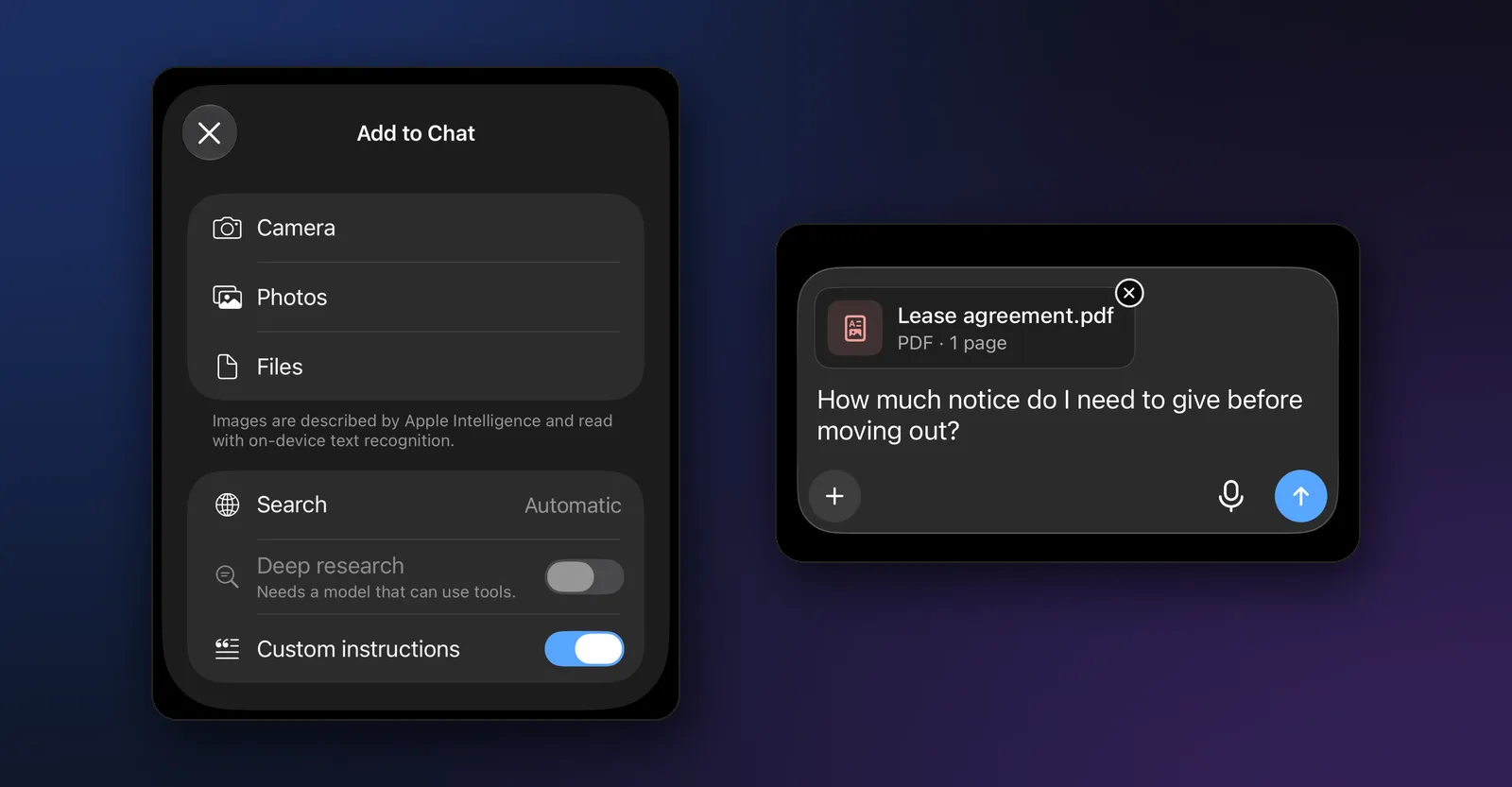
- Tap + next to the message field, then Files. The Add to Chat sheet also offers Camera and Photos, for asking about a picture instead.
- Pick the PDF from Files, iCloud Drive or any folder Files can see. A chip with the file’s name and page count appears above the message field while it’s read.
- Type your question and send it. For example: “Summarize this in five bullet points”, “How much notice do I need to give before moving out?” or “Explain section 4 in plain English”.
- Check the source. The reply cites the page it used, so you can open the PDF at that page and read the original wording.
You can keep asking follow-up questions in the same chat; the file stays attached to the conversation. Attach a second file to the same chat if you want to ask about both.
On a Mac, choose File > Attach Files… (Shift-Command-A) or drag the PDF onto the chat window, then ask in the same way.
What happens to the PDF
This is the part that makes on-device PDF chat different from upload sites, so it’s worth knowing exactly what the app does.
- The text is read on your device. Modelbase takes each page’s text from the PDF itself. Pages that are only an image, like a scan or a photo of a page, are read with Apple’s on-device text recognition.
- The document is split into passages and indexed on your device. Each passage is a few sentences long. The index uses keywords and Apple’s on-device language embeddings for meaning, so “how do I end the lease?” can find a paragraph titled “Notice to end the lease”.
- When you ask, the app picks the most relevant passages and gives only those to the model, with their page numbers. That’s how a small model on a phone can answer about a long document: it never has to hold all of it at once.
- The model answers from those passages and cites them, so each answer points to a page.
The file is copied into the app’s own storage on your device, and attached files stay on the device: if you turn on iCloud sync, your chats and settings sync, not the files. With an on-device model, no part of the document leaves your iPhone. (If you switch the chat to a cloud model from OpenRouter or to a server of your own, the passages it needs are sent to that model with your question, so stay with a local model for anything private.)
What you can ask a PDF
| You want to | Try asking |
|---|---|
| Get the gist | “Summarize this”, “What is this document about?”, “TL;DR” |
| Find something | “Where does it say anything about pets?”, “Which page mentions the deposit?” |
| Understand a passage | “Explain the termination clause in simple words”, “What does ‘indemnify’ mean here?” |
| Get a specific answer | “What’s the late fee?”, “When does the contract end?” |
| Pull out a table | “Extract the table of fees” |
| Prepare | “What questions should I ask the landlord before signing?” |
A few habits give better answers:
- Ask one thing at a time. “What’s the notice period?” works better than “Tell me the notice period, the deposit rules and the pet policy.”
- Use the document’s own words when you know them (“security deposit”, “termination”), which helps the search find the right passage.
- Name the section if the document has numbered sections: “What does section 7 say?”
- Ask for a quote when wording matters: “Quote the sentence about subletting.”
Which documents work, and the limits
| What Modelbase reads | |
|---|---|
| File types | PDF, Word (.docx), plain text, Markdown, CSV |
| File size | Up to 50 MB |
| Long PDFs | The first 500 pages; the app tells you if it stopped there |
| Scanned pages | Read with on-device text recognition, up to 40 scanned pages per file |
| Spreadsheets (CSV) | Up to 5,000 rows, read as a table |
| Password-protected PDFs | Not readable: the app says the file is protected |
Nothing is cut off silently: if only part of a file was read, the answer says so (for example, “Read the first 500 of 812 pages”).
And the honest limits:
- A small model can misread. The models that run on a phone are good at finding and explaining a passage, less good at reasoning across a 200-page report. Check the cited page for anything that matters, and don’t rely on an AI’s reading of a legal or medical document without checking it.
- Layouts can confuse it. Multi-column pages, footnotes, forms and charts don’t always come out as clean text. Tables in a PDF are read as text; a CSV keeps its rows and columns.
- “Summarize the whole thing” gives an overview from the opening and the most central passages, not a chapter-by-chapter digest. For a long document, ask about one part at a time.
Which model to use for PDFs
The included LFM 2.5 (1.2B) handles everyday documents well, and Liquid AI recommends its models for retrieval (“RAG”) and data extraction (Liquid AI), which is exactly what document questions are. If your device has room for a bigger model, Qwen 3.5 (4B, a 3.06 GB download) or Phi 4 Mini (3.8B, 2.18 GB) explain dense text better. Our guide to which model to run on your iPhone helps you choose, and the LFM 2.5 guide explains the included model.
Chat with a PDF offline
Because the reading, the index and the model are all on your device, PDF chat works with no connection at all: on a plane, abroad without roaming or anywhere without signal. Download any extra model before you go, and attach the files you’ll need while you still have them on the device. Our guide to using AI offline lists what else works without the internet.
PDF chat apps compared: on-device vs upload
| On-device (Modelbase) | Upload websites and cloud chatbots | |
|---|---|---|
| Where the file is read | Your iPhone, iPad or Mac | The service’s servers |
| Works offline | Yes | No |
| Account needed | No | Depends on the service |
| Cost | Free | Depends on the service |
| Model size | Small (runs on the device) | Large |
| Best for | Private documents, everyday questions | Very long documents, deep analysis |
If you need a big model’s analysis of a document that isn’t private, a cloud service is the stronger tool. For your lease, your bank statement or your kid’s school report, reading it on your own device is the safer default.
For more ways to use AI on your phone without uploading anything, see how to ask AI about a photo on your iPhone and how to run an LLM locally on iPhone, iPad and Mac.
FAQ
Can I chat with a PDF on my iPhone for free?
Yes. Modelbase is free on the App Store and needs no account. Attach a PDF with + > Files and ask your question; the file is read and answered on the iPhone.
Is it safe to use AI to read a PDF?
It depends on where the AI runs. Upload sites read the file on their servers. An on-device app like Modelbase reads it on your iPhone, iPad or Mac, so with a local model the document never leaves the device.
Can the AI read scanned PDFs?
Yes. Pages that are only an image are read with Apple’s on-device text recognition, up to 40 scanned pages per file. Clear printed text works best.
How long can the PDF be?
Up to 50 MB, and Modelbase reads the first 500 pages. If a document is longer, the answer says how much was read.
Can it summarize a PDF?
Yes. Ask “Summarize this” for an overview in a few bullet points. For long documents, you’ll get better results by asking about one chapter or section at a time.
Does it work with Word documents?
Yes. Word (.docx), plain text, Markdown and CSV files work the same way as PDFs.
Try it on your iPhone, iPad or Mac
Modelbase is free on the App Store.