LM Studio vs Ollama: which should you use to run LLMs locally?
· By Modelbase Team
LM Studio and Ollama both run open language models on your own computer, free for local use, and both can serve them to other apps through an OpenAI-compatible API. The short version: LM Studio is a polished desktop app built around a chat window and an in-app Hugging Face model browser, free at home and at work but not open source. Ollama is open source (MIT), built around a command line and its own model library, with a simple desktop app on macOS and Windows. Pick LM Studio if you want to explore models in a GUI; pick Ollama if you want something to script, run on a server or put in Docker.
Everything below was checked on each project’s official site, docs and GitHub as of November 2026. Both change quickly, so check the links before you rely on a detail.
LM Studio vs Ollama at a glance
| LM Studio | Ollama | |
|---|---|---|
| What it is | Desktop app with a chat interface and a programmable API | Open-source tool to run and build with open models |
| Mac | Apple silicon only, macOS 14 or later | Apple M series (GPU) or Intel (CPU only), macOS 14 or later |
| Windows / Linux | Yes / yes | Yes / yes, plus a Docker image |
| Interface | Full GUI app; lms command line; headless mode |
Desktop app on macOS and Windows; command line on all |
| License | Proprietary app (free); CLI, SDKs and MLX engine are MIT | Open source, MIT |
| Price for local use | Free, including at work | Free; local use is unlimited |
| Model formats | GGUF (llama.cpp) everywhere; MLX on Apple silicon | MLX engine on Apple silicon; GGUF via llama.cpp |
| Where models come from | Built-in Hugging Face search and downloader | The Ollama library (ollama pull), or import a GGUF |
| API | OpenAI-compatible (and Anthropic-compatible) | Own API plus an OpenAI-compatible subset |
| Port | 1234 in the docs’ examples | 11434 by default |
| Serve to other devices | “Serve on Local Network” setting | Set OLLAMA_HOST |
| iPhone / iPad | Locally AI by LM Studio | No official app |
| Paid extras | Cloud models in paid plans | Cloud models in paid plans |
Sources: LM Studio docs, LM Studio system requirements, Ollama docs, Ollama on GitHub.
What each one is
LM Studio is a desktop app for downloading, running and chatting with LLMs on your
computer. You search Hugging Face from inside the app, download a model, load it and chat. The same app runs a local
API server, and it comes with a command-line tool (lms) and a headless version (llmster) for machines without a
screen. Its homepage now also promotes LM Studio Bionic, an agent app; the classic LM Studio app is still a separate
free download.
Ollama started as a command-line tool and server: ollama run llama3.2 downloads a model
from the Ollama library and starts a chat in your terminal. Since July 2025 it also has a desktop app for macOS and
Windows (Ollama blog), but its core is still the background server that other
apps talk to. The code is open source under the MIT license.
Platforms and requirements
- Mac. LM Studio needs Apple silicon (M1 or later) and macOS 14 or later; Intel Macs aren’t supported. Ollama also needs macOS 14 or later, and runs on Apple M-series Macs with GPU acceleration or on Intel Macs on the CPU only.
- Windows. LM Studio supports x64 (with AVX2) and ARM. Ollama supports Windows 10 22H2 or later.
- Linux. Both run on Linux. Ollama also ships a Docker image, which makes it the usual choice for servers. Its
desktop app is announced for macOS and Windows only; on Linux you run
ollama serve.
Price and license
Both are free for running models on your own hardware.
- LM Studio has been free “at home and at work” since July 2025 (LM Studio blog). The app itself is proprietary; its CLI, its JavaScript and Python SDKs and its MLX engine are open source under MIT. As of November 2026, paid plans add cloud models: Bionic+ at $20 a month and Pro at $100 a month (pricing).
- Ollama is MIT-licensed open source. Running models on your own hardware is unlimited and free; as of November
2026, paid plans for its cloud models are Pro at $20 a month, Max at $100 a month and Team at $500 a month
(pricing). Cloud models can be switched off entirely with
OLLAMA_NO_CLOUD=1.
Models and engines: GGUF and MLX
Both now run the two main local formats.
- GGUF, the format of llama.cpp, runs on almost any hardware. LM Studio uses llama.cpp on every platform; Ollama added GGUF compatibility through llama.cpp in version 0.30 (June 2026).
- MLX, Apple’s machine learning framework, is built for Apple silicon. LM Studio runs MLX models on Apple silicon Macs, and Ollama on Apple silicon has been built on MLX since 2026 (Ollama blog). Our explainer What is MLX? covers why it suits Macs.
The bigger difference is where models come from. LM Studio searches Hugging Face directly, so almost any GGUF or MLX
upload is a few clicks away. Ollama pulls from its own curated library by name (ollama pull qwen3), which is
simpler but narrower; other GGUF files can be imported with a Modelfile.
Local server and API
This is where both shine, and why many people run them even if they never use their chat windows.
- LM Studio serves OpenAI-compatible endpoints (and Anthropic-compatible ones). Its docs use port 1234 in their examples. To let other devices on your network use it, turn on Serve on Local Network in the server settings (docs).
- Ollama has its own API plus a subset of the OpenAI API at
http://localhost:11434/v1/. By default it listens only on127.0.0.1:11434; to reach it from another device, set theOLLAMA_HOSTenvironment variable (on a Mac running the Ollama app:launchctl setenv OLLAMA_HOST "0.0.0.0:11434", then restart Ollama) (Ollama FAQ).
Both support vision models, tool calling and structured output through their APIs.
Features beyond chat
- Documents. LM Studio lets you attach documents to a chat and work with them offline (retrieval, or RAG). The Ollama app supports dragging in text files and PDFs.
- MCP. LM Studio has a built-in MCP client, so local models can use MCP tools. We found no built-in MCP client documented for Ollama.
- Headless use. LM Studio has llmster and
lms; Ollama hasollama serveand Docker. - Phone. LM Studio’s iPhone and iPad app, Locally AI by LM Studio, runs models on the phone with MLX and connects to LM Studio on your computer through LM Link (App Store). Ollama has no official mobile app; you use a third-party client (see Ollama GUI apps).
Privacy
Both are local by design. LM Studio’s docs say that nothing you enter when chatting leaves your device (docs). Ollama’s FAQ says it doesn’t see your prompts or data when you run locally (FAQ). Their optional cloud models are different: those requests go to their servers, under the zero-data-retention policies each describes.
Use either one from your iPhone with Modelbase
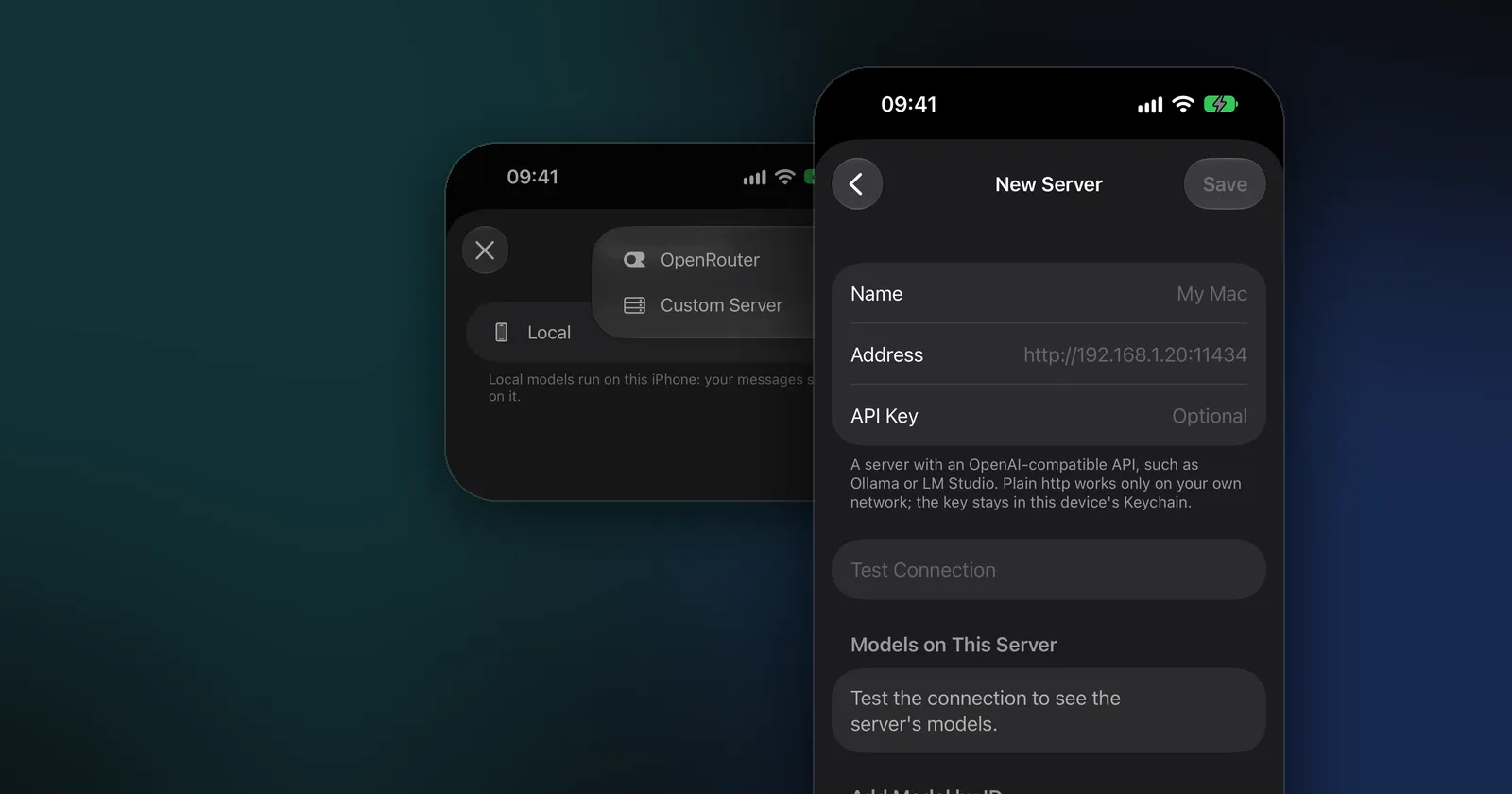
Both tools can serve a model to your phone. Modelbase, our free app for iPhone, iPad and Mac, connects to any OpenAI-compatible server, and its setup screen names Ollama and LM Studio as examples:
- On your computer, make the server reachable: turn on Serve on Local Network in LM Studio, or set
OLLAMA_HOSTfor Ollama as above. - In Modelbase, open the model picker, tap Manage models, then + and Custom Server.
- Enter your computer’s address on your network, for example
http://192.168.1.20:11434for Ollama or port 1234 for LM Studio. Modelbase adds the/v1path itself. An API key is optional. - Tap Test Connection. The server’s models appear under Models on This Server; save, and pick one in the model picker.
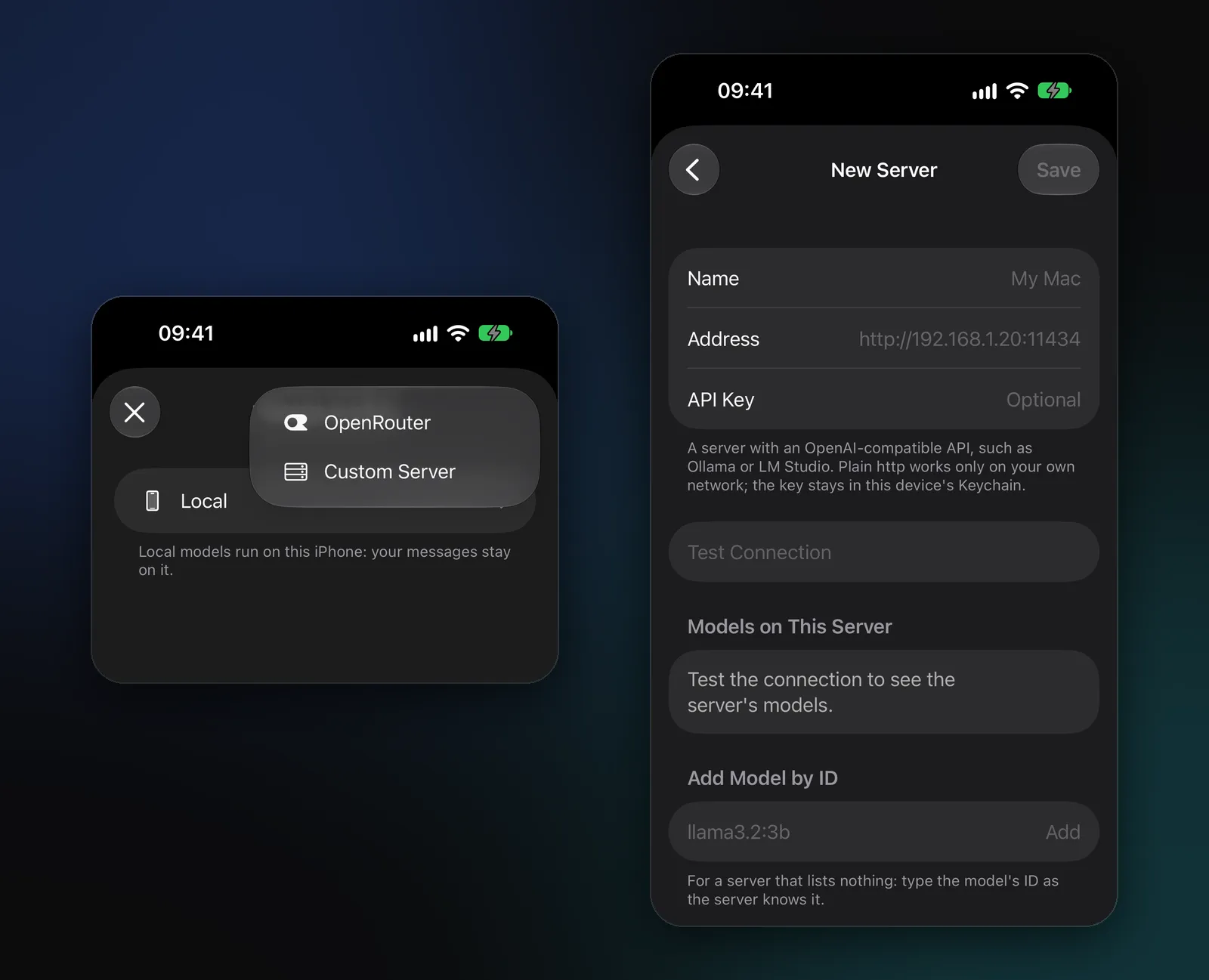
Plain http works only on your own network; outside it, the server needs https. The model runs on your computer, so your messages go to it, and nowhere else. When you’re away from home, Modelbase still has its own models that run on the phone itself (how that works).
Which should you choose?
Choose LM Studio if you want a desktop app to browse, download and compare models from Hugging Face, chat with documents, or use MCP tools, and you’re on an Apple silicon Mac, Windows or Linux.
Choose Ollama if you want open source, a server for scripts and other apps, Docker or a Linux box, or an Intel Mac (CPU only).
Use both if you like. Many people browse and test in LM Studio and run Ollama as an always-on server. They don’t conflict as long as they use different ports.
FAQ
Is LM Studio free for commercial use?
Yes. Since July 2025, LM Studio is free to use at home and at work. Its paid plans (as of November 2026) are for cloud models, not for using the app.
Is Ollama open source?
Yes. Ollama is open source under the MIT license, on GitHub.
Is Ollama safe and private?
When it runs models locally, Ollama says it doesn’t see your prompts or data. By default it listens only on your own
computer (127.0.0.1); opening it to your network with OLLAMA_HOST means other devices on that network can use it
too, so only do that on a network you trust.
Which is faster, LM Studio or Ollama?
It depends on the model, the format and your hardware, and both use the same kinds of engines (llama.cpp and MLX on Apple silicon), so there’s no general winner. Try the same model in both on your machine.
Do LM Studio and Ollama work on Intel Macs?
Ollama does, on the CPU only. LM Studio requires Apple silicon.
Can I use LM Studio or Ollama on my iPhone?
Not directly: both run on computers. LM Studio’s own iPhone app, Locally AI, connects to it; for Ollama, use a client app. Modelbase connects to either as a custom server, and also runs models on the iPhone itself.
Try it on your iPhone, iPad or Mac
Modelbase is free on the App Store.